

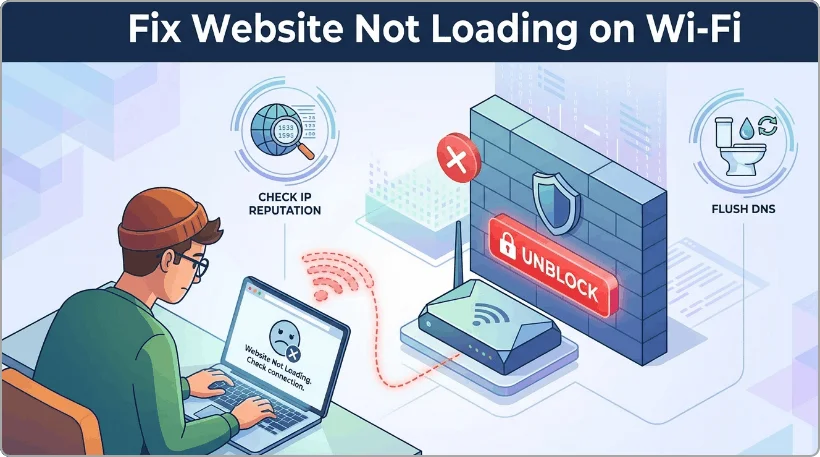
Introduction: The Frustrating Network Mystery
Have you ever experienced a strange issue with your website not loading on Wi-Fi, but it opens perfectly fine the exact moment you switch to your phone’s mobile data network? When this happens, browsers typically return a generic error message such as “This site can’t be reached” or “Connection Timed Out.”
mobile data network? When this happens, browsers typically return a generic error message such as
“This site can’t be reached” or “Connection Timed Out.”
Rest assured, your web servers are healthy and your code is completely fine. If you are dealing with a website not loading on Wi-Fi, this issue is almost always driven by an automated security mechanism called an IP Address Firewall Block. In this tutorial, we will break down exactly how to diagnose, delist, and bypass this network block permanently.
Chapter 1: Why is My Website Not Loading on Wi-Fi?
Most residential broadband Internet Service Providers (ISPs) deploy dynamic or shared public IP networks. This means the specific network address assigned to your router today was likely utilized by other subscribers in previous weeks. If a past user of that IP address had a malware infection or performed automated bot attacks, security firewalls flag that IP address globally.
When you attempt to connect to your web hosting platform (such as Hostinger), its local firewall checks the global blacklist registry. If your network’s shared IP address triggers a reputation alert, the server drops your connection instantly to protect your files. Your mobile data provider operates on an entirely distinct routing matrix, allowing it to bypass the local block easily.
Chapter 2: Checking Your Status on AbuseIPDB
The first major step to restoring access is checking your public network signature against global abuse databases and initiating a cleanup request.
- Disconnect any active VPN sessions and look up your current address on Google by searching “What is my IP“.
- Open AbuseIPDB.com and input that precise address into the main database lookup field.
Review the historical logs below the main summary to observe exactly why and when the routing blocks were triggered by external web servers.
Chapter 3: Submitting an Official Takedown Request
To safely clear your network profile, log into a free account on the platform and submit a clean request form under the Takedown module.
Recommended AbuseIPDB Delisting Message: “I am a residential home user. This network IP was recently assigned to me by my ISP. I have no relation to any past security alerts or automated malicious actions. Please process this takedown request to restore normal hosting server routing.”
Chapter 4: Clearing the Hosting Server & Local Cache Layers
Once global databases reset your confidence index to 0%, your hosting control panel might still store the firewall rule inside its local memory cache layers.
- Log into your primary hosting administration interface (e.g., Hostinger hPanel) using an active mobile data connection or temporary VPN proxy.
- Initiate a live support conversation with the automated helper or support engineer to clear any lingering firewall blocks instantly.
- Provide the support desk with your clear AbuseIPDB status. The system or agent will trigger a manual cache sync immediately.
Flushing Local DNS Directory via Windows Command Prompt
To finish the process, you must purge your local operating system network directory to ensure your computer updates its target servers.
- Type cmd into the Windows Search bar, right-click the execution shortcut, and choose Run as administrator.
- Execute the official flush directory utility inside the console and press the Enter key:
| ipconfig /flushdns |
Perform an additional hard refresh on your web browser by pressing Ctrl + Shift + R (or Cmd + Shift + R on Mac) to completely load your live web platform without issues.
Conclusion
Fixing a website not loading on Wi-Fi doesn’t require modifying any code or backend databases. By managing your IP reputation, coordinating with web hosting firewalls, and flushing local DNS directories, you can clear routing bottlenecks safely. Implement these steps to keep your user pathways fluid and resolve the website not loading on Wi-Fi error entirely.

